
Automations
Decide what should happen. Let it run by itself.
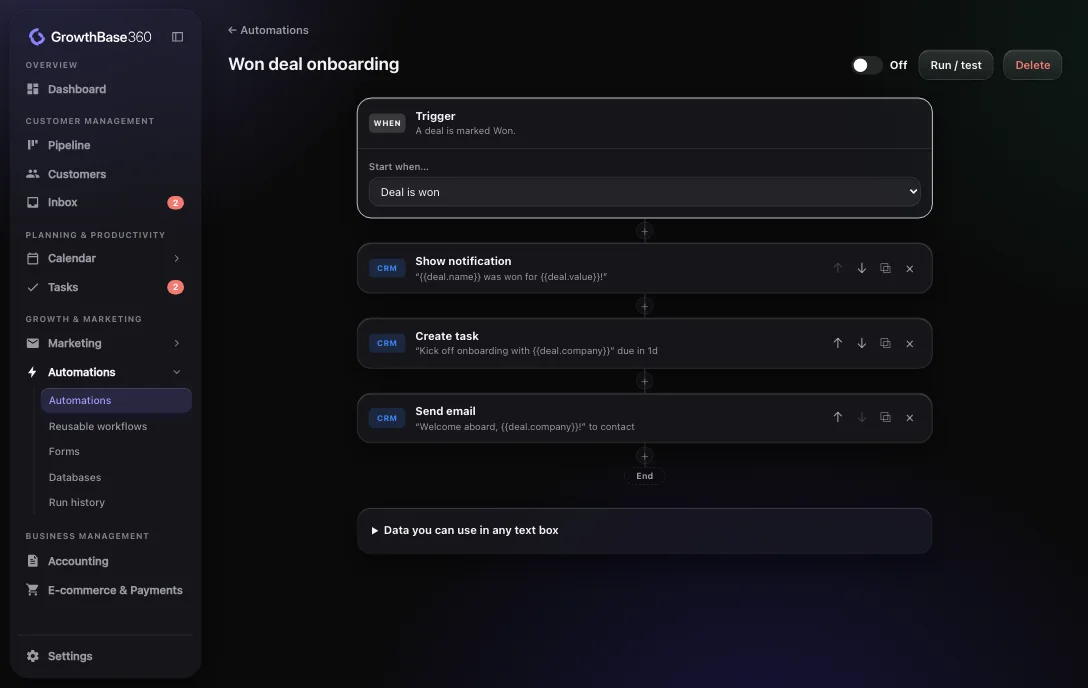
Choose a trigger, add steps in a visual builder, test it and switch it on. It carries on working when nobody is signed in.
Examples
Automations you could build today
Each of these uses triggers and steps that are in the product now.
Never forget a proposal
Follow up on new leads
Catch failed payments
What can start an automation
Triggers
A selection of the available triggers. Integration triggers need that application to be connected.
Sales
- Deal is created
- Deal moves to a stage
- Deal is won
- Deal is lost
Tasks
- Task is created
- Task is completed
- Task becomes overdue
Leads and forms
- Form is submitted
- New lead is generated
- Lead is scored
- Lead becomes qualified
- Landing page converts
Inbox
- New email received
- New social message received
- Conversation assigned
- Conversation closed
Accounting
- Invoice created
- Invoice paid
- Invoice becomes overdue
- Payment received
- Credit note created
E-commerce and payments
- New online order
- Online order paid
- Online order refunded
- Stripe payment failed
- Stripe subscription cancelled
Calendar and time
- Meeting is booked
- On a schedule
- Run manually
- Called by another automation
What an automation can do
Workflow steps
CRM
- Create task
- Update deal
- Move deal to stage
- Mark deal won or lost
- Add note
- Add contact to deal
- Create deal
Communication
- Send email
- Show notification
- Post to Slack or Discord
Logic and time
- Filter
- If / else path
- Loop over a list
- Delay
- Set variable
- Format data
Data
- Search deals and tasks
- Search a database
- Add and update database rows
- HTTP request to an API
More than a list of rules
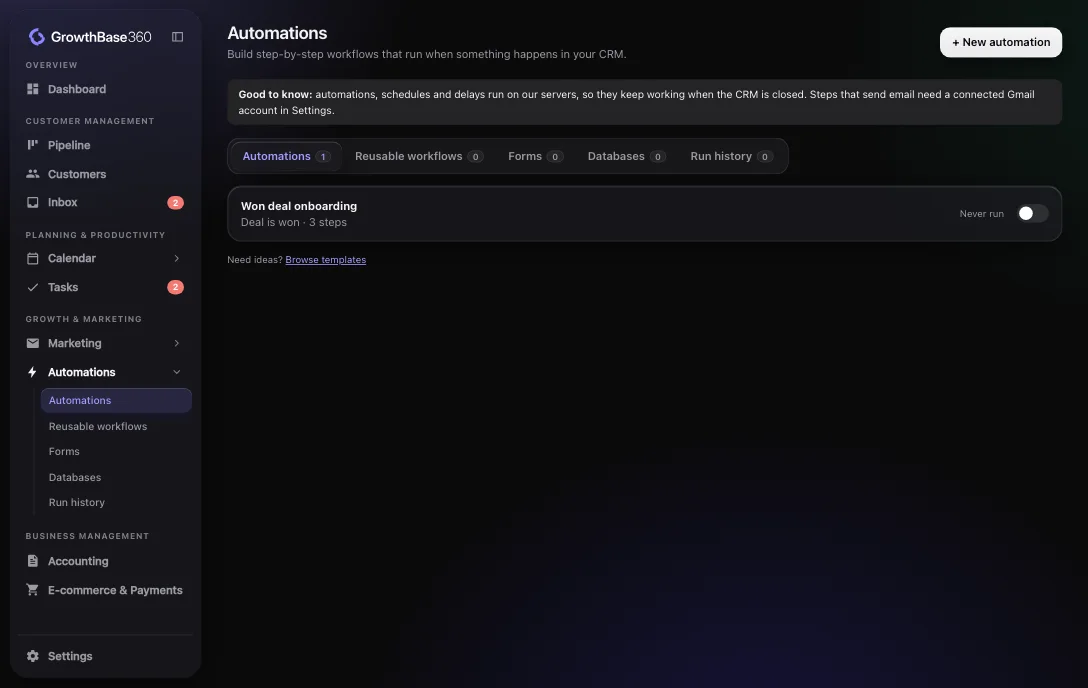
The same area holds the building blocks that automations work with.
- Reusable workflows that other automations can call with inputs
- Forms that collect information and start automations
- Databases for your own tables, which steps can search and update
- Run history showing what each run did
Connected
How it connects to the rest of GrowthBase360
FAQ
Frequently asked questions
Do automations need my computer to be on?
No. In your workspace they run on our servers, including delays and schedules, so they keep going when nobody is signed in.
How many automations can I have?
The Free plan allows up to 3 automations. Pro has no limit.
Can I see what an automation did?
Yes. Run history shows each run and what each step did, so you can check the result or find out why something stopped.
Give your team its time back.
Start with one automation and build from there.